
In the process of deploying Facebook advertising campaigns, performance optimization is the key factor determining success or failure. One of the optimization methods applied by many professional advertisers is controlling Facebook ad placements. It is not always an effective solution to have your ads appear everywhere. Through the article below, Soclua will guide you on how to remove Facebook ad placements, helping you save costs and increase conversion rates.
What are ad placements on Facebook?

The locations where you can run your ads are called ad placements. Depending on the objective you select when creating a campaign, your ads can appear across the Meta platform ecosystem, including Facebook, Messenger, Instagram, Threads, and the Meta Audience Network. Your ad type and settings will determine which placements are available to you. Not all ads can be used in every placement. Facebook categorizes placements into various groups, including Feeds, Stories, Reels, In-stream videos, Search results, the Right column, Messenger Inbox, and within partner apps and websites.
Normally, when creating an advertising campaign, Facebook recommends that users select “Automatic Placements” so the platform can distribute ads based on its optimization algorithms. However, this approach does not always deliver the best performance. Certain placements may negatively impact user experience, resulting in increased costs without generating proportionate results.
Therefore, if you want to have better control over where your ads appear, manually selecting your placements is essential. In certain cases, you may want to remove specific ad placements that do not align with your Facebook strategy.
Why should you remove Facebook ad placements?
Not all placements yield good conversion performance. Some locations, such as the Audience Network (Meta's partner network outside of Facebook), often display ads on irrelevant apps or websites, thereby reducing the quality of reach to your target audience.
Additionally, each ad placement requires a different format. For instance, Stories and Reels require short vertical videos, while the Facebook Feed is more suited for horizontal images or longer videos. If your content is incompatible with certain placements, ads may be cropped, distorted, or cause viewers to skip. Furthermore, unmanaged ads may appear in inappropriate locations, which can negatively impact your strategy, especially when running campaigns for large, critical projects.
By removing underperforming placements, you can concentrate your entire budget on the locations that deliver real value, thereby enhancing campaign performance and improving business results.
How to remove Facebook ad placements?
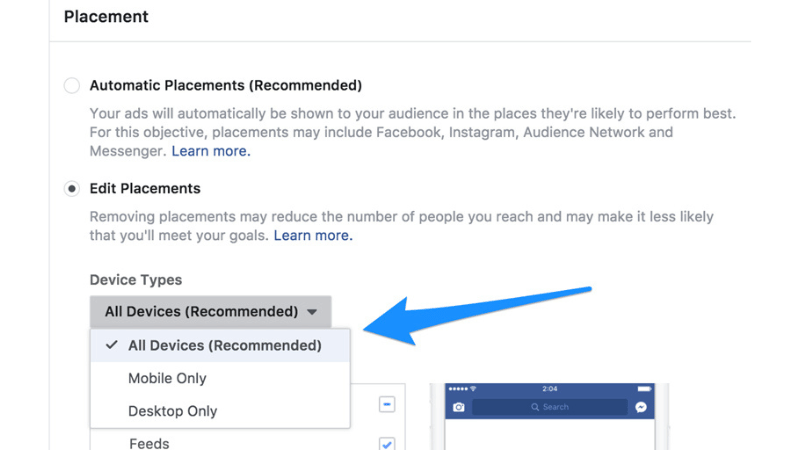
To remove or exclude specific ad placements, you need to perform the action within the Ad Set level of Facebook Ads Manager. Specifically, you should follow these steps:
Access Ads Manager and select the campaign or ad set
First, you need to log in to Ads Manager at: https://www.facebook.com/adsmanager. Then, select the advertising account you want to work with. Locate the campaign you need to edit and navigate to the corresponding ad set.
Edit ad placements
In the ad set editing interface, you will see a section labeled “Ad Placements” or “Placements.” By default, Facebook selects “Automatic Placements,” which allows the platform to automatically distribute your ads across all available placements.
Edit or remove ad placements
To remove specific placements, you need to change the selection from “Automatic Placements” to “Manual Placements.” Facebook will then immediately display a detailed list of ad placements across multiple platforms, including Facebook, Instagram, Messenger, and Audience Network. Each platform contains several sub-placements such as Feed, Stories, Reels (short videos), Inbox, etc.
At this point, you can manually deselect (uncheck) the placements where you do not want your ads to appear. For example, if you do not want your ads to be shown in Messenger or on the Audience Network, simply uncheck those two options. The system will then understand that you do not want to distribute ads to those locations.
Once you have finished making adjustments, you need to click the 'Publish' button to save your changes. Facebook will then update the new configuration and apply it to the ad set you have edited.
Important notes when customizing ad placements
To optimize campaign effectiveness, you need to rely on actual data and analyze user behavior. Below are a few considerations to help you avoid mistakes when adjusting ad placements:
Avoid removing too many placements at once
The fewer ad placements you retain, the less data Facebook has to optimize. If a campaign is new and lacks sufficient data, you should keep more placements active to allow Facebook the opportunity to test and identify the optimal channels. After a few days, once clear data is available, you should then begin to limit the selection to your primary placements.
Analyze ad performance before removing placements
You can track the performance of each ad placement in the Reporting section of Ads Manager. You can create custom reports and add the 'Placement' breakdown to compare metrics such as CPM (Cost Per 1,000 Impressions), CPC (Cost Per Click), CTR (Click-Through Rate), or conversion rates. These metrics will help you identify which placements are 'burning budget' without delivering value, allowing you to make more accurate decisions on which ones to remove.
Consider appropriate ad formats
Next, you need to ensure that your ad creative is compatible with the remaining placements after removal. If you only retain placements like Stories or Reels, the content must be designed in a 9:16 vertical video aspect ratio. Conversely, if you only keep the Feed placements, you can be more flexible with various formats. Do not let the retention of suitable placements be undermined by content that fails to meet requirements, preventing the ads from reaching their full potential.
High-performing ad placements
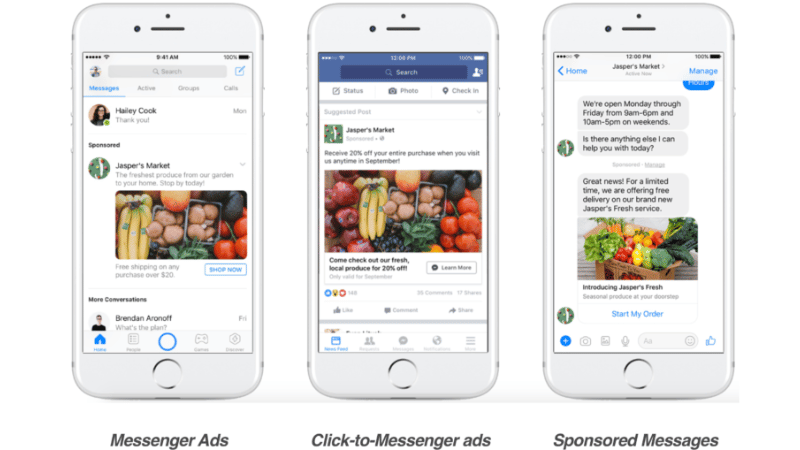
There is no fixed formula for selecting ad placements across all industries. However, based on campaign objectives, Soclua suggests prioritizing the following types of Facebook ad placements như sau:
- If you want to increase brand awareness, placements such as Facebook Feed, Instagram Feed, and Reels are ideal choices. These are the locations where users frequently stop and engage the most.
- When the objective is to increase post engagement or shares, Facebook and Instagram Stories will deliver high effectiveness. This is where users tend to react quickly and frequently consume concise content.
- If you are focusing on conversions or sales, you should prioritize Facebook Feed, Instagram Feed, and In-stream video placements. These are the locations where users spend a significant amount of time and tend to take purchasing actions.
- If you want to expand your sales channels via messaging, Messenger Inbox and Sponsored Messages will be more suitable. However, you need to have a customer service team ready to respond promptly to fully capitalize on the reached audience.
Removing Facebook ad placements is a crucial step that helps you better control your campaigns, save costs, and focus on high-performing channels. You need to master how to remove placements to truly gain control and understand exactly where your ad budget is going and what it is delivering. However, you should rely on actual data, monitor key metrics, and continuously make adjustments to optimize ad performance.
Frequently Asked Questions
Whether removing Facebook ad placements decreases campaign effectiveness depends on the specific case. If you eliminate underperforming placements based on actual data, the ads will concentrate the budget on placements with higher conversion rates, thereby improving campaign performance. However, if you remove too many placements without sufficient data, effectiveness may be adversely affected.
Yes. You can fully edit the ad set to change or remove any ad placements at any time, even after the campaign has been approved and is active. Once the adjustments are made, simply click 'Publish' to apply the changes.